TL;DR: We achieved 390 Gbps raw throughput between two Linux servers with BlueField-3 DPUs and 193 Gbps IPsec using strongSwan and we’re now working to speed this up. This is something we assumed would be simple, but we hit a lot of hiccups along the way - this post shares our learnings.
In this post we share the process, patched BFB image, and setup utility scripts that got us here.
Introduction
During part of Amodo’s extensive work on AI safety and security, the question of “can we encrypt a data centre’s front end network without losing performance?” came up. At the time, the predominant front end network in AI data centres using COTS hardware seemed to consist of 400G NICs on the servers with 400G leaf and spine switches. If we could use NVIDIA’s BlueField 3 DPUs to act as 400G NICs with transparent IPsec then we might be on to something. Based on the BlueField’s datasheets, it seemed that they should be capable of this out of the box.
Thus began what became a multi-month research effort to either succeed at getting a BlueField 3 DPU to achieve 400G IPsec, or to ‘prove’ that whatever we did achieve was the limit the hardware could deliver.
Hardware setup
Part 1: The server
We used two Dell PowerEdge R7615 24 x 2.5” 2U servers from Bytestock (riser config 3: 2 x16 Double-Wide Full Length PCIe).
| Part SKU | Description |
|---|---|
| R7615 24B 2.5” | Dell PowerEdge R7615 24 x 2.5” 2U Rack Server |
| G9DHV | Dell Motherboard for R7615 |
| 100-000000805 | Dell AMD EPYC 9354P CPU Processor 32 Core 3.25GHz 256MB Cache 280W |
| 2K16D | Dell PowerEdge R6615 R7615 R7625 High Performance CPU Heatsink |
| T761Y | Dell HBA355i Front Mounting Host Bus Adapter |
| FFGX3 | Dell PowerEdge 16th Gen Front Perc Card Holder (24SFF) |
| WW56V | Dell M.2 BOSS-N1 Card for R7615 (WITH HOLDER & CABLES 8XTCG & NNDPN) |
| 08M01 | Dell SK Hynix M.2 480GB Gen 3 NVMe SSD Drive HFS480GDC8X099N |
| KH121 | Dell PowerEdge 16th Gen M.2 BOSS Card SSD Carrier |
| CPH58 | Dell PowerEdge R760 Server GPU Power Riser 1 Cable |
| GPN9K | Dell Single 12-port GPU Power Supply Line Cable |
| GPN9K | Dell ASSY,CBL,GPU PWR and SIG for R760 |
| 1CW9G | Dell PowerEdge 15th / 16th Generation 1400W 80 Plus Platinum Power Supply |
| K87YW | Dell PowerEdge B21 2U R550 R750XS R760 R760XS R7615 R7625 Sliding Rail Kit |
| M321R4GA3BB6 | 8x 32GB DDR5 RAM |
We mounted the two servers in a 600x1000mm 12U rack and installed Ubuntu 22.04 on each server.
Part 2: The right DPU
The first trial was working out what the correct DPU was. NVIDIA have NICs, DPUs, and SuperNICs.
NIC
NVIDIA’s primary NIC (Network Interface Card) offerings are the ConnectX series. These support adding high-bandwidth Ethernet or InfiniBand to hosts via PCIe (up to 800G with the ConnectX-8 series).
They also typically add support for RDMA and RoCE, but limited other offloading capabilities.
DPU
NVIDIA’s DPUs (Data Processing Units) incorporate ConnectX NICs but additionally include hardware for offloading data processing and preparation tasks, including a powerful Arm CPU and dedicated acceleration hardware for cryptography.
SuperNIC
NVIDIA’s SuperNICs are somewhere between a DPU and a NIC. Like DPUs, they also comprise a NIC, an Arm CPU, and acceleration hardware, but they are less powerful than their DPU counterparts.
NVIDIA DPU SKUs
Depending on how you navigate the NVIDIA site tree you can get to different SKU results. We were only able to find the right site once we’d spent >5 hours on calls with NVIDIA’s support engineers! We’ve condensed our understanding of NVIDIA’s Bluefield-3 offerings to help you out! The following are all Networking Platform DPUs (i.e. not DPU Controllers, see appendix).
| BlueField-3 SKU | HW crypto? | RAM (GB) | Ports | Speed per port (Gbps) | Arm core series* | Form factor |
|---|---|---|---|---|---|---|
| 900-9D3B6-00CN-AB0 | ✓ | 32 | 2x QSFP112 | 400 | P-Series | Dual-Slot FHHL |
| 900-9D3B6-00SN-AB0 | 32 | 2x QSFP112 | 400 | P-Series | Dual-Slot FHHL | |
| 900-9D3B6-00CV-AA0 | ✓ | 32 | 2x QSFP112 | 200 | P-Series | Single-Slot FHHL |
| 900-9D3B6-00SV-AA0 | 32 | 2x QSFP112 | 200 | P-Series | Single-Slot FHHL | |
| 900-9D3B6-00CC-EA0 | ✓ | 32 | 2x QSFP112 | 100 | E-Series | Single-Slot FHHL |
| 900-9D3B6-00SC-EA0 | 32 | 2x QSFP112 | 100 | E-Series | Single-Slot FHHL |
*Arm core series legend: P-Series = performance; E-Series = entry level.
We ended up going for two of the 900-9D3B6-00CN-AB0 from Ballicom as it appeared to be the most capable.
Warning
The 900-9D3B6-00CN-AB0 is a dual-slot card, so this should be taken into account when determining server fitment.
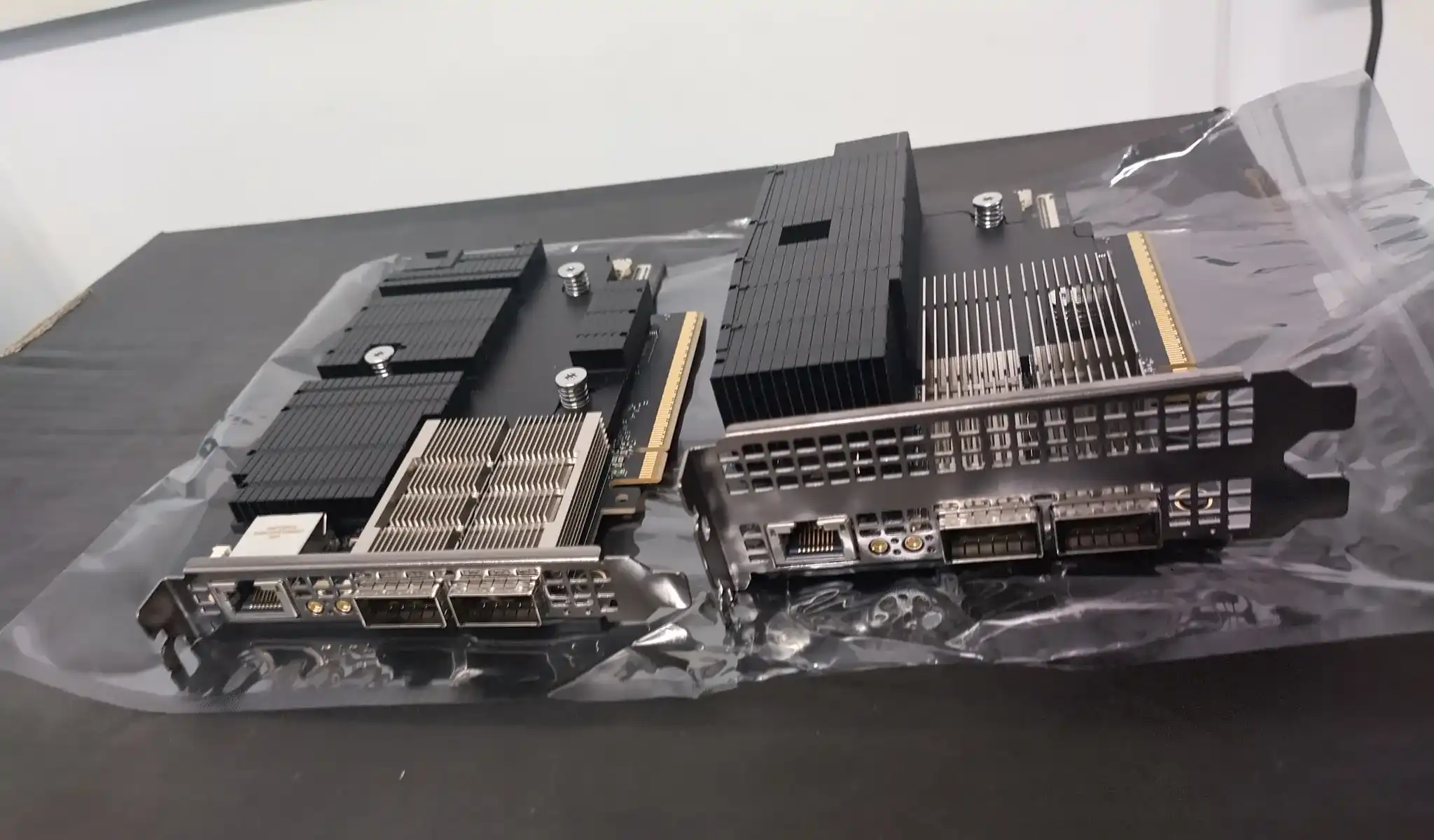
A comparison between a single-slot and dual-slot DPU. The visible difference appears to be entirely in the size of the heatsinks.
We installed one DPU in each server, ensuring that they were in a PCIe 5.0 x16-capable slot (much easier said than done - the Dell docs are pretty obtuse!).
Part 3: Network configuration
We set up the basic network, with one DPU in each server, and p0 of both DPUs connected together via a 400G QSFP Direct Attach Copper (DAC) cable, as shown:

We hooked up the DPU out-of-band Ethernet ports to an external router with DHCP enabled and internet access. This allows Redfish access to the BMC, as well as the DPUs’ Arm CPUs to get internet access (required for Tailscale access later).
Provisioning the DPUs
Most of this is taken from NVIDIA’s quick start guide.
Step 1: Install DOCA on the host
The DOCA SDK is useful to have on the host as it comprises useful utilities for managing the DPU from the host, including RShim drivers that allow access to a terminal on the DPU Arm from the host.
The instructions for this are available on the NVIDIA website but it comes down to running the following on the CPU of the host server:
export DOCA_URL="https://linux.mellanox.com/public/repo/doca/2.9.2-4.9.2-13551_OVS-DOCA_update/ubuntu22.04/x86_64/"
curl https://linux.mellanox.com/public/repo/doca/GPG-KEY-Mellanox.pub | gpg --dearmor > /etc/apt/trusted.gpg.d/GPG-KEY-Mellanox.pub
echo "deb [signed-by=/etc/apt/trusted.gpg.d/GPG-KEY-Mellanox.pub] $DOCA_URL ./" > /etc/apt/sources.list.d/doca.list
sudo apt-get update
sudo apt-get -y install doca-all
Note that we are installing DOCA 2.9.2 to match the patched BFB image we install on the DPUs later.
Step 2: Change the default BMC password
The default BMC password is 0penBmc, but the BMC requires that this is changed before the BMC or any related settings can be changed.
The password can be changed via the Redfish API, but it can also be changed from the DPU Arm directly using:
sudo ipmitool user set password 1 <new password>Warning
Despite the NVIDIA docs saying that the password can be 12-20 chars long, in our experience it can only be 16 chars (bytes) max. Providing a password of 17-20 chars did not cause it to complain, but we could not log in!
Step 3: Update BFB
Achieving symmetrically offloaded IPsec via OVS turned out to be a huge challenge. After a lot of support from NVIDIA, including regular calls with two of their engineers (including them setting up clones of our system), it was determined that there was a bug in the underlying Mellanox OFED kernel driver.
A pre-patched version of the BFB image for DOCA version 2.9.2 was built by one of the NVIDIA engineers and has been made available here in Google Drive.
Run the sideloading utility from the host:
sudo bfb-install --rshim rshim<N> --bfb <image_path.bfb>This can take a while. Once it has completed and rebooted the DPU, proceed to the next step.
Warning
The shared BFB image is unsigned and thus requires us to disable Secure Boot in order to load the patched kernel modules.
Step 4: Disable secure boot permanently
Although it is possible to disable Secure Boot for a single boot using the UEFI, every reboot turns it on again. The only success we had disabling it permanently was to use the Redfish API provided by the BMC.
The Redfish API requires the BMC to have an IP address (in our case, allocated by the OOB router). Having multiple DPU BMCs on the same OOB would typically make determining this IP tricky, including requiring matching up MAC addresses. Fortunately, we can interrogate the BMC for its IP address over the ipmitool command line interface.
The following command will disable secure boot in the non-volatile BMC memory.
BMC_IP=$(sudo ipmitool -I open lan print 1 | grep "^IP Address[[:space:]]*:" | awk -F':' '{print $2}' | xargs)
curl -k -u root:'<BMC password set in step 1>' -X PATCH -H "Content-Type: application/json" -d '{"SecureBootEnable": false}' https://$BMC_IP/redfish/v1/Systems/Bluefield/SecureBoot
Once this is done, the DPU must be rebooted twice for this setting to take effect (see NVIDIA’s docs on why).
After booting for the second time, you can validate that the patched drivers have been loaded by running:
sudo /etc/init.d/openibd restartIf you see the following output, then the drivers have been loaded successfully.
Unloading HCA driver:                                      [  OK  ]
Loading HCA driver and Access Layer:                       [  OK  ]
Step 5: Set up DPU hostname and remote access
Step 5: Set up Tailscale VPN
Todo
- RShim in via screen
- Log in with
ubuntuubuntu- Change the password
- Change hostname to the serial number for keeping track
sudo lspci -vvv | grep "Serial number"- Install Tailscale
We used Tailscale on both the hosts and DPUs to add remote SSH access without having to mess with the OOB router, set up port forwarding rules or risk public exposure of insecure devices on the OOB network. This was notably useful on the DPUs as the terminal that screen offers can be hard to use, particularly for long commands.
Login and set up the DPU.
From the host, access a terminal on the DPU via the RShim:
sudo screen /dev/rshim0/consoleLog in to the DPU using the default credentials ubuntu and ubuntu.
Change the password for user ubuntu using passwd.
At this point we chose to change the hostname (which defaults to localhost.localdomain) to the serial number of each DPU. The serial number can be obtained by running the following on the host:
sudo lspci -vvv | grep "Serial number"To change the hostname, run the following on the DPU:
SNO=<serial number>
sudo hostnamectl set-hostname $SNO
sudo -- sh -c 'echo "127.0.1.1 $SNO" >> /etc/hosts'
Install Tailscale using the install script by going to the Tailscale admin console → Machines → Add device → Linux server → Generate install script.
Disclaimer: we are not affiliated with Tailscale, we just like their VPN and ease of setup!
Fast unencrypted data
With our hardware set up, we proceeded to the next mission: to get data moving quickly between our two DPUs.
Todo
- Set up hardware offloading
- Offload flows
- Set MTUs
- Use testpmd for higher throughput than
iperf
Results
Acknowledgements
We would like to thank NVIDIA for their crucial support in this quest. Particularly, we would like to thank James Tau and Kiran for their substantial assistance, weekly live debugging sessions and cutting-edge driver patches.
We would also like to thank Server Room Environments for their help in choosing a suitable server rack and networking hardware.
Appendix
Why you really shouldn’t buy a storage controller
“Storage controller”, “Controller” or “Self-hosted” are all terms for DPUs designed to be a PCIe host that can manage storage devices (e.g. HDDs) directly, without needing a host machine. These have PCIe disabled by default, and may default to being in NIC mode, so are a pain to get running in the first place. Once they are operational, they have a hard internal bandwidth cap of ~100G from host PCIe to QSFP port, even if the port itself is capable of higher speeds.
SKUs to avoid
All B3220SH model DPUs:
- 900-9D3C6-00CV-GA0
- 900-9D3C6-00CV-DA0 (we started with this one)
- 900-9D3C6-00SV-DA0
How to reset the DPU Arm password
Whilst working on this project, we managed to lock ourselves out of the DPU on more than once occasion. The following sections are to help anyone recover from this scenario.
Re-flash the BFB image
Warning
This will erase all files on the DPU.
On the host machine (with the DOCA SDK installed), run:
wget https://content.mellanox.com/BlueField/BFBs/Ubuntu22.04/bf-bundle-2.9.2-32_25.02_ubuntu-22.04_prod.bfb
sudo bfb-install --rshim rshim0 --bfb bf-bundle-2.9.2-32_25.02_ubuntu-22.04_prod.bfb
This does not reset the BMC or UEFI passwords. They can be reset once you have access to the DPU Arm CPU.
Put DPU into DPU mode
The DPU Arm CPU does not run when the DPU is in NIC mode. If it is already in DPU mode, this step is not required.
-
From the host, run
mst startto create/dev/mst -
mlxconfig -d /dev/mst/mt41692_pciconf0 s INTERNAL_CPU_OFFLOAD_ENGINE=0Should see something like:root@as7:/dev/mst# mlxconfig -d /dev/mst/mt41692_pciconf0 s INTERNAL_CPU_OFFLOAD_ENGINE=0 Device #1: ---------- Device type: BlueField3 Name: 900-9D3B6-00CN-A_Ax Description: NVIDIA BlueField-3 B3240 P-Series Dual-slot FHHL DPU; 400GbE / NDR IB (default mode); Dual-port QSFP112; PCIe Gen5.0 x16 with x16 PCIe extension option; 16 Arm cores; 32GB on-board DDR; integrated BMC; Crypto Enabled Device: /dev/mst/mt41692_pciconf0 Configurations: Next Boot New INTERNAL_CPU_OFFLOAD_ENGINE DISABLED(1) ENABLED(0) Apply new Configuration? (y/n) [n] : y Applying... Done! -I- Please reboot machine to load new configurations. root@as7:/dev/mst# mlxconfig -d /dev/mst/mt41692_pciconf0.1 s INTERNAL_CPU_OFFLOAD_ENGINE=0 Device #1: ---------- Device type: BlueField3 Name: 900-9D3B6-00CN-A_Ax Description: NVIDIA BlueField-3 B3240 P-Series Dual-slot FHHL DPU; 400GbE / NDR IB (default mode); Dual-port QSFP112; PCIe Gen5.0 x16 with x16 PCIe extension option; 16 Arm cores; 32GB on-board DDR; integrated BMC; Crypto Enabled Device: /dev/mst/mt41692_pciconf0 Configurations: Next Boot New INTERNAL_CPU_OFFLOAD_ENGINE ENABLED(0) ENABLED(0) Apply new Configuration? (y/n) [n] : y Applying... Done! -I- Please reboot machine to load new configurations. -
Reboot DPU
-
Log in with default credentials (username
ubuntu, passwordubuntu) and change password as prompted
How to reset UEFI password
Requires running from the DPU Arm CPU, either over SSH or RShim from the host machine.
sudo bfrec --capsule /lib/firmware/mellanox/boot/capsule/EnrollKeysCap- Reboot DPU (power cycle not required)
- Press
esctwice when the boot sequence prompts it - Enter default password
bluefield - Enter new password